
Documentation
Zmień na Polski →
Theme set up instructions:
-
- Introduction
- Divi Theme Instalation
- Import Divi Settings
- Import Pages Layouts
- Divi Theme Customization
- Logo
- Favicon
- Button Style
- Header Style
- Footer Style
- Content Customization
Theme set up instructions
1. Introduction
It is nice to see you here. Thanks for choosing our theme. Claire WP Theme is built for personal brands in beauty & wellness industry. Claire is a responsive WordPress theme, made by a creative team of Get Others Attention interactive agency.
Developed by

2. Divi Theme Instalation
After you’ve installed WordPress on your hosting, download the archive with the purchased theme, unzip it and prepare claire.zip archive. Open your WordPress dashboard.
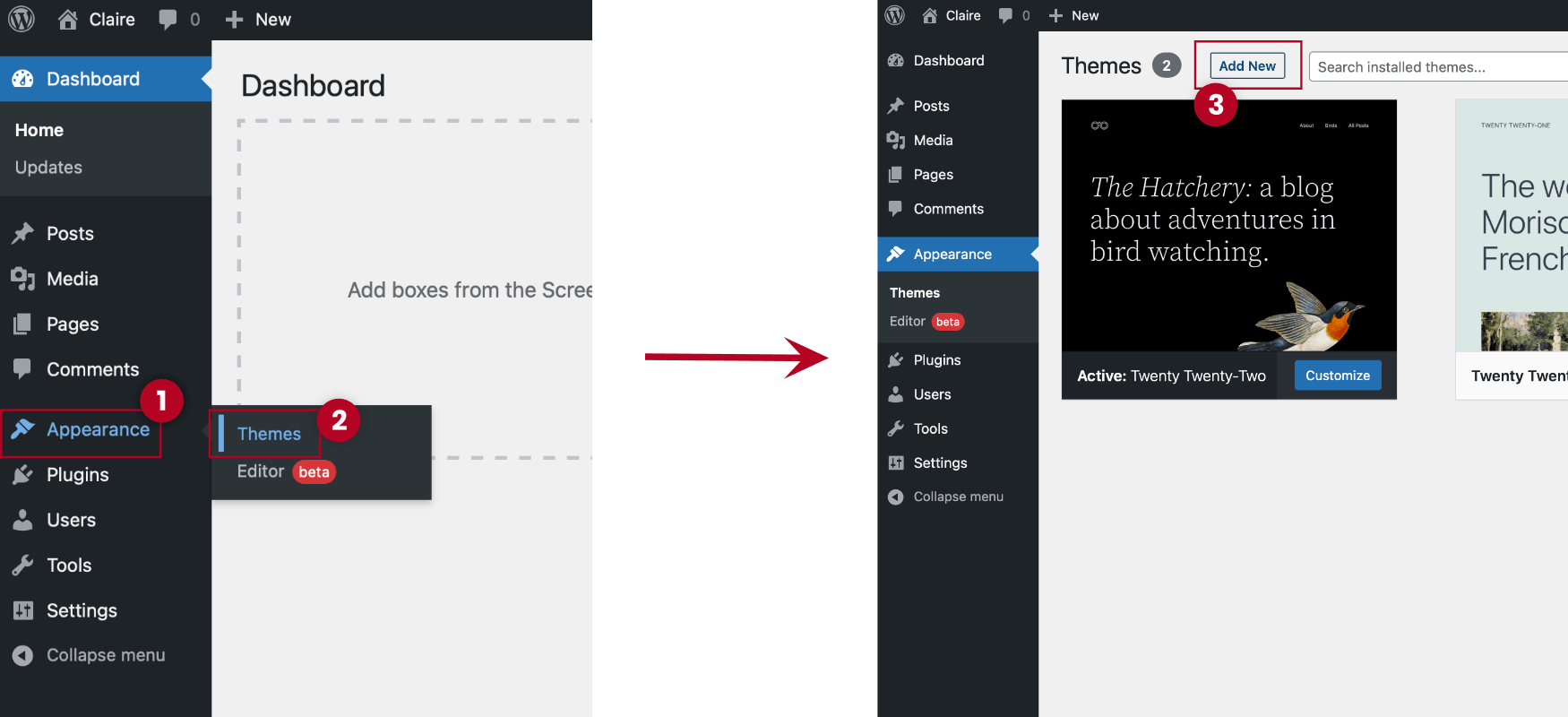
Go to Appearance > Themes and click on Add New.
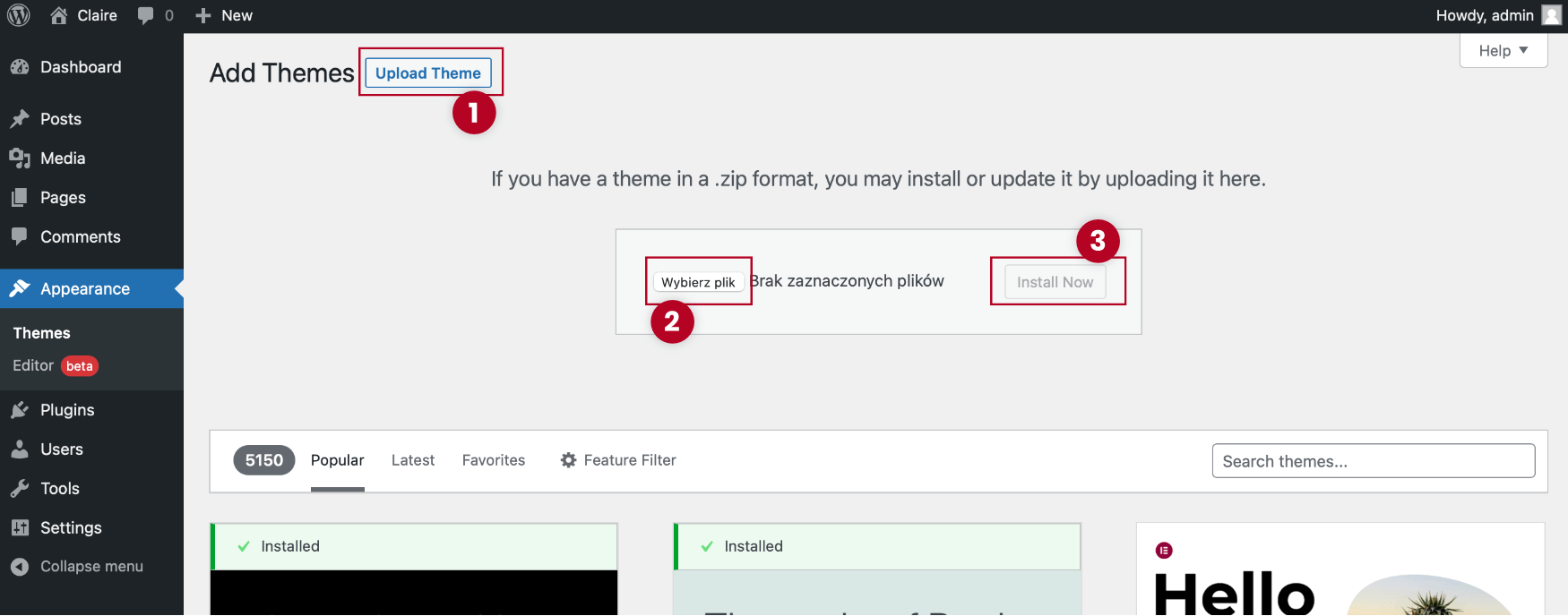
Click on Upload Theme then click on Choose File and select the Divi.zip. Click Install Now.
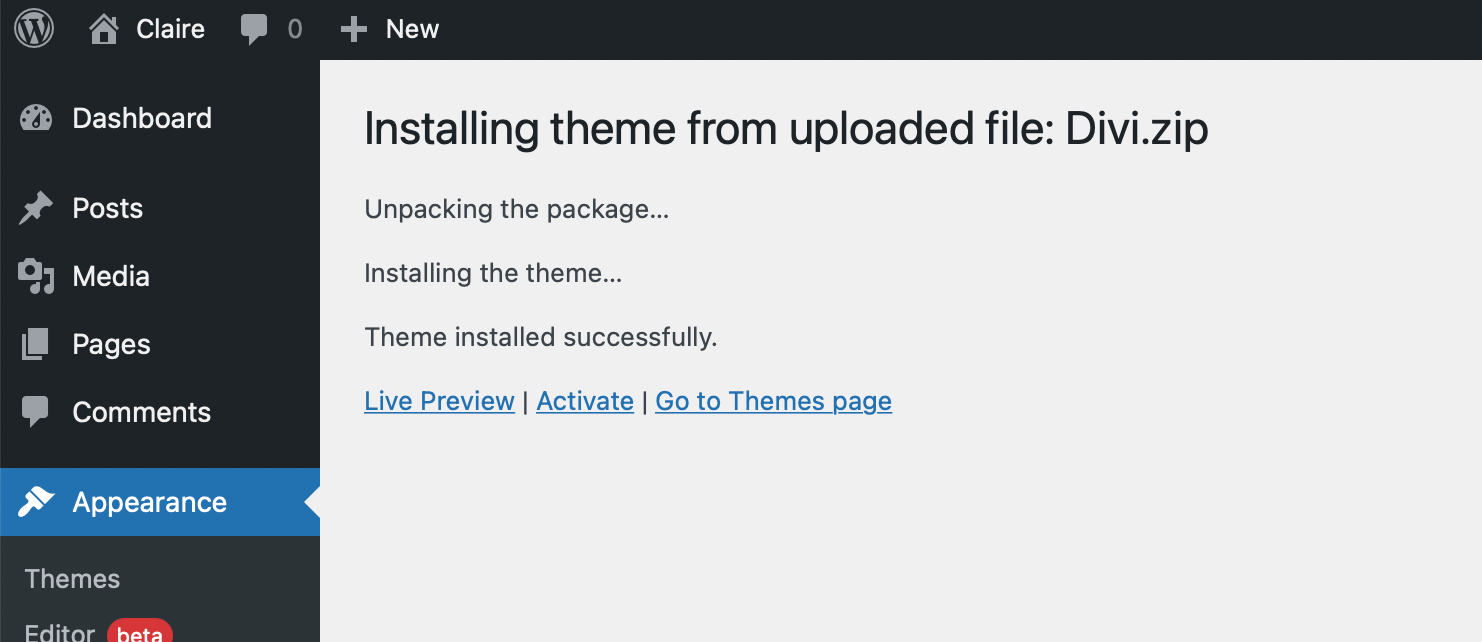
The Divi Theme is installed now. You can click on Activate to enable the theme.
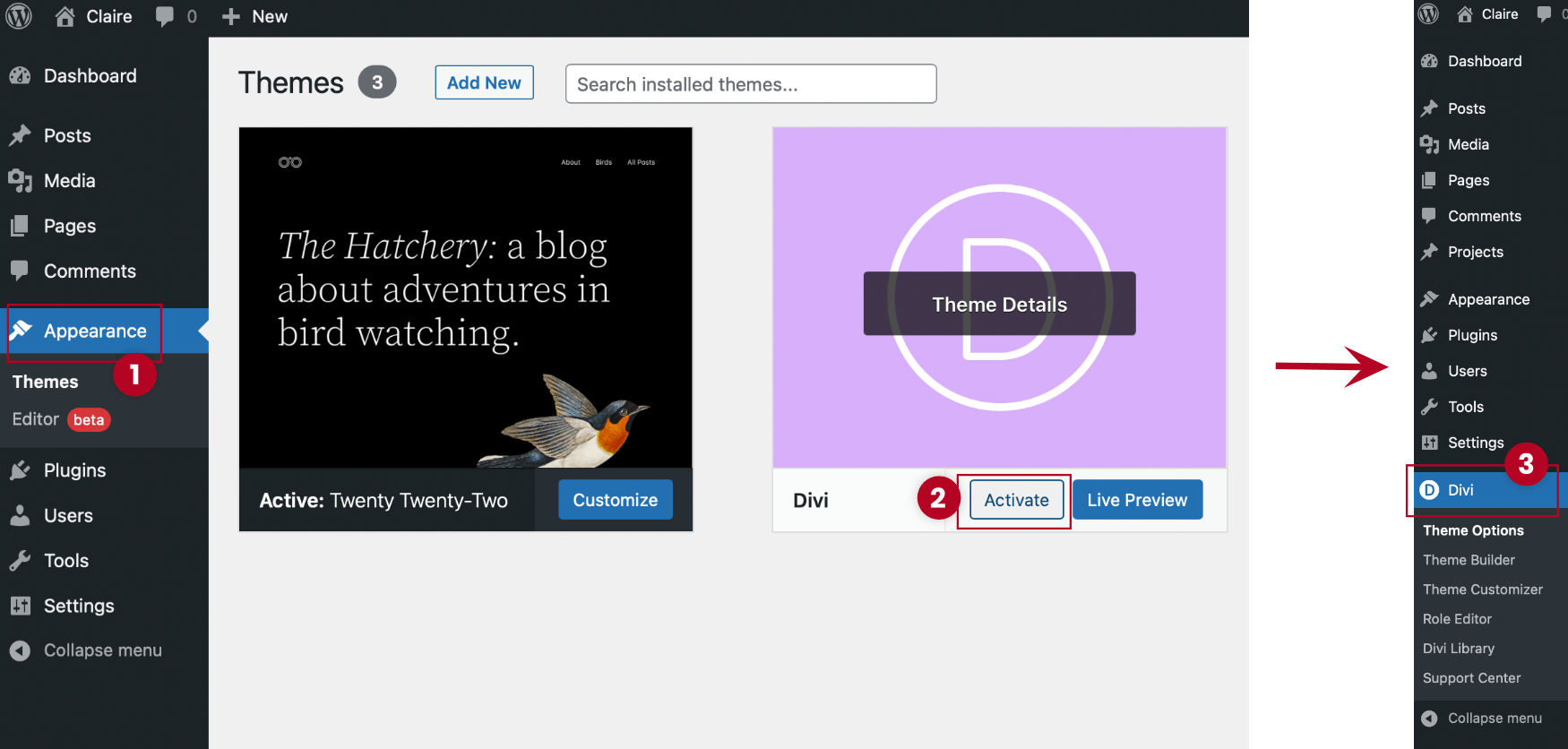
Go to Appearance > Themes and click on Activate. Now there is a new icon in your WordPress.
3. Import Divi Settings
After you’ve activated the Divi theme, it’s time to start importing the necessary files. There will be four files that you need on this step: Theme Options | Theme Builder | Theme Customizer | Divi Library
Import Theme Options
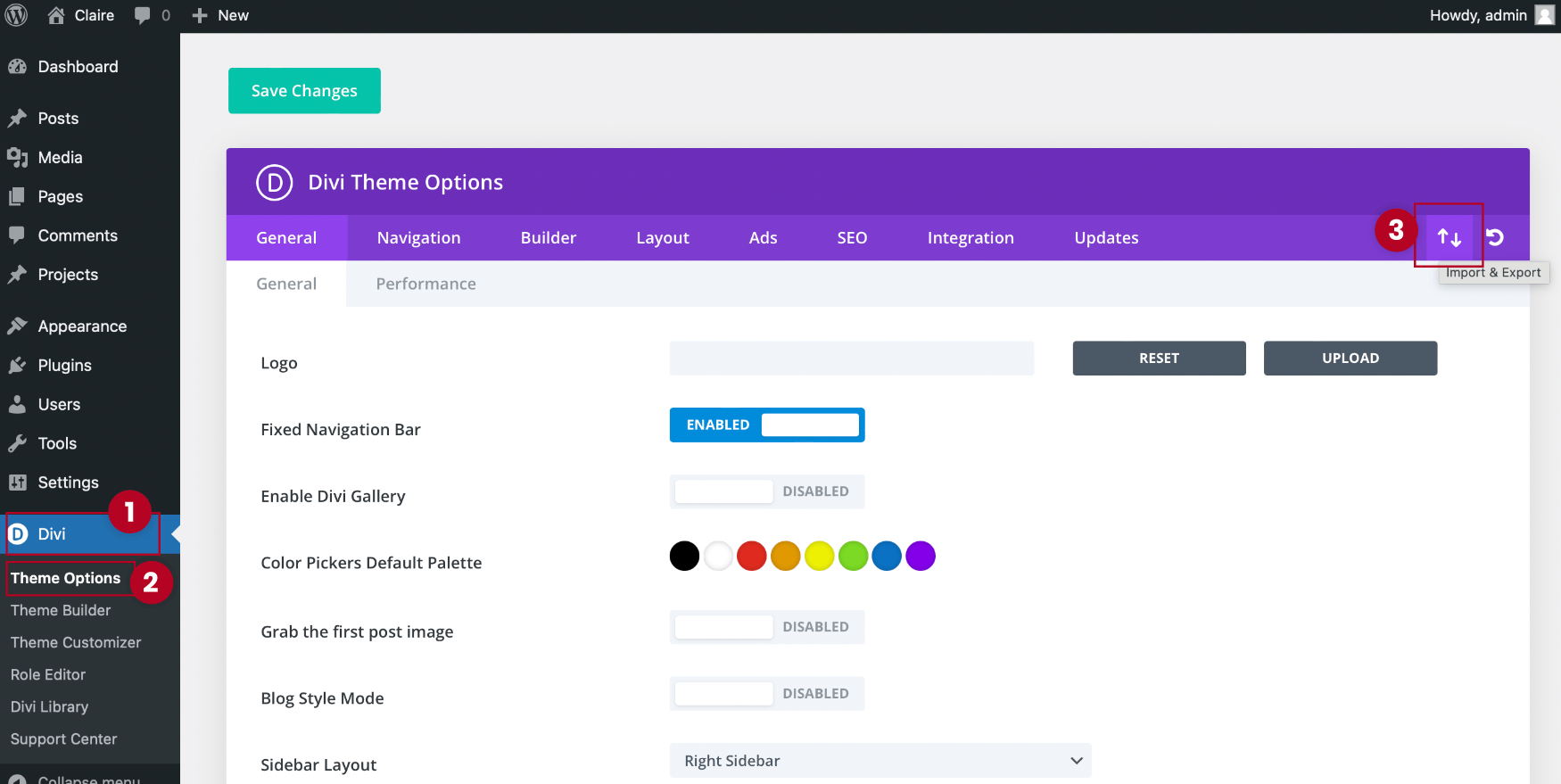
Go to Divi > Theme Options and click on Import & Export (Two arrows icon).
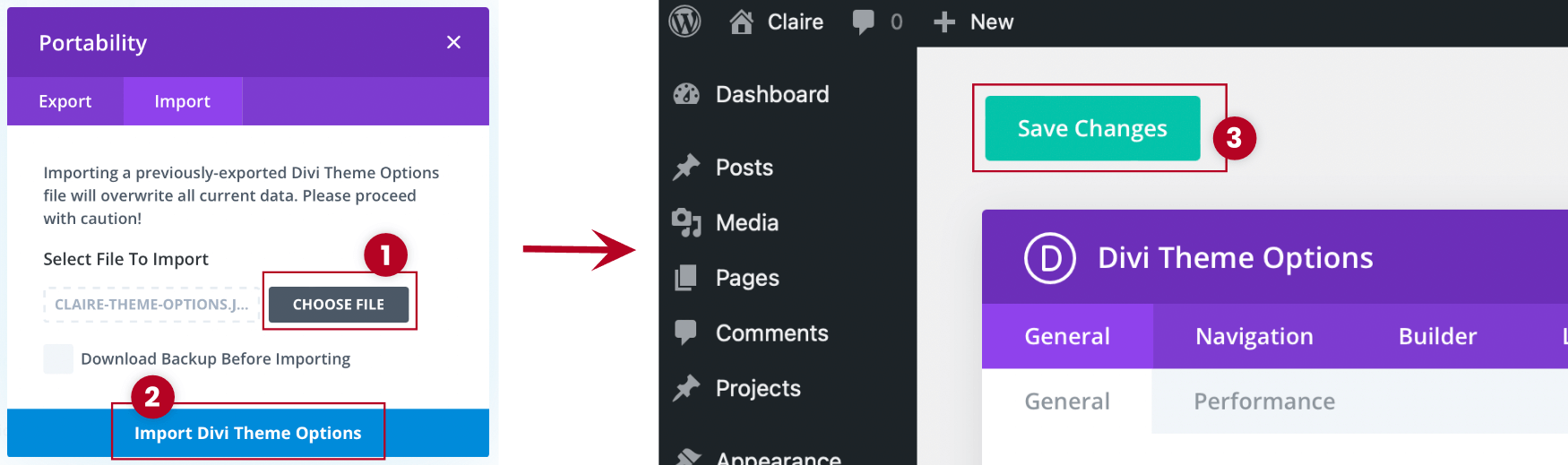
Select the Import tab. Click on Choose File and select the Claire-Theme-Options.json. Click Import Divi Theme Options. After all, remember to Save Changes by clicking green button.
Import Theme Builder
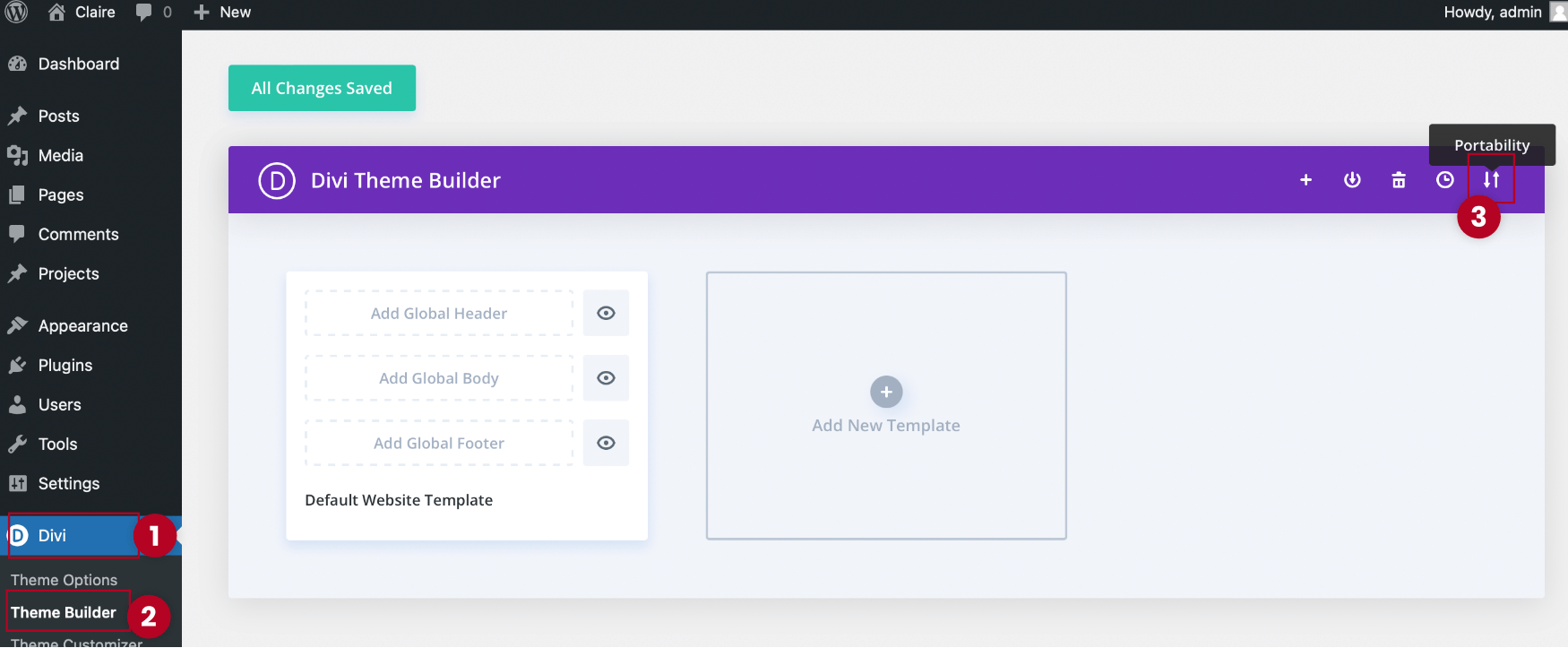
Go to Divi > Theme builder and click on Import & Export (Two arrows icon).
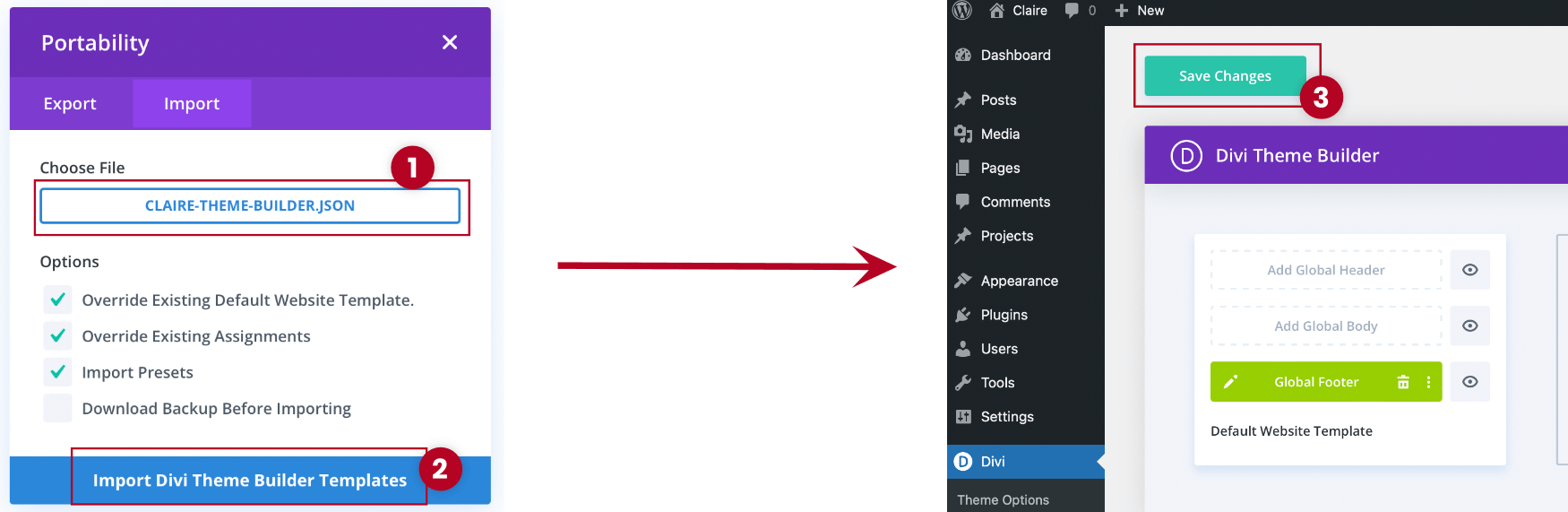
Select the Import tab in the window that appears. Click on Choose File and select the Claire-Theme-Builder.json. Click Import Divi Theme Builder Templates. After all, remember to Save Changes by clicking green button.
Import Theme Customizer
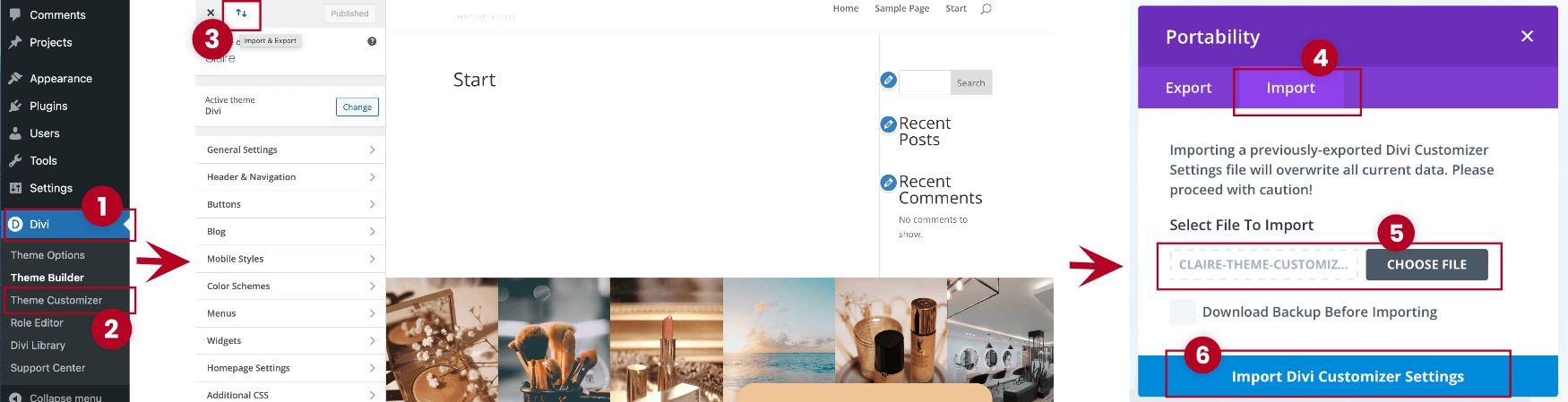
Go to Divi > Theme Customizer and click on Import & Export (Two arrows icon).
Select the Import tab. Click on Choose File and select the Claire-Theme-Customizer.json. Click Import Divi Customizer Settings.
Import Divi Library
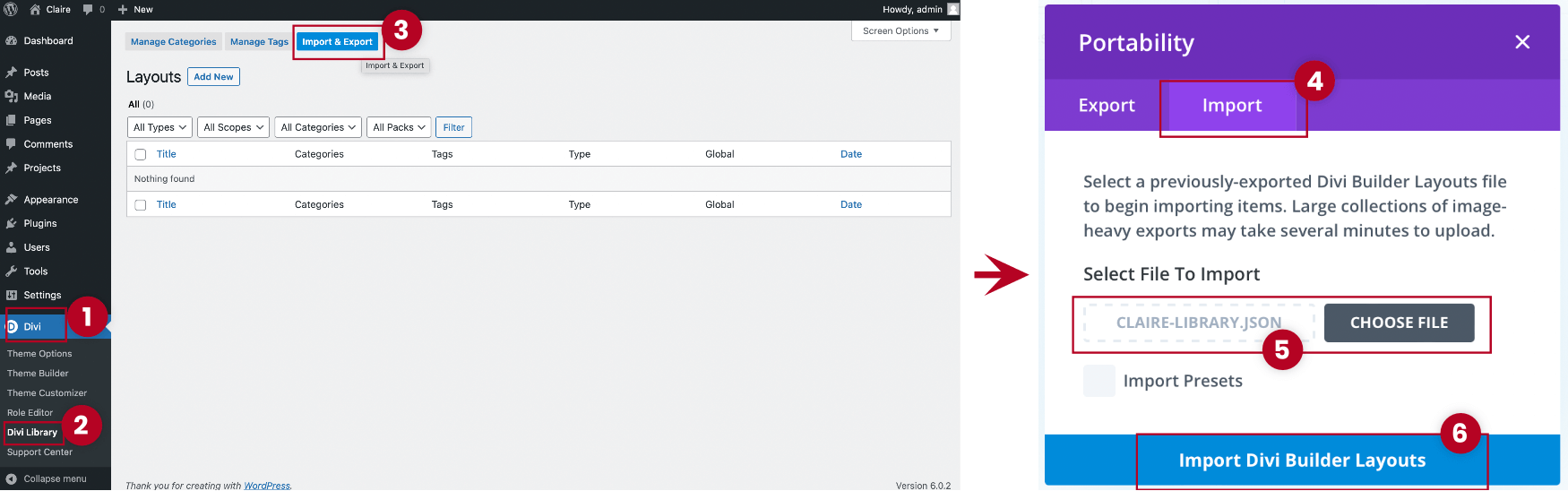
Go to Divi > Divi Library and click on Import & Export.
Select the Import tab in the window that appears. Click on Choose File and select the Claire-Library.json. Click Import Divi Builder Layouts.
4. Import Pages Layouts
The import process will be shown on the example of Home Page import. All pages imports looks exactly the same.
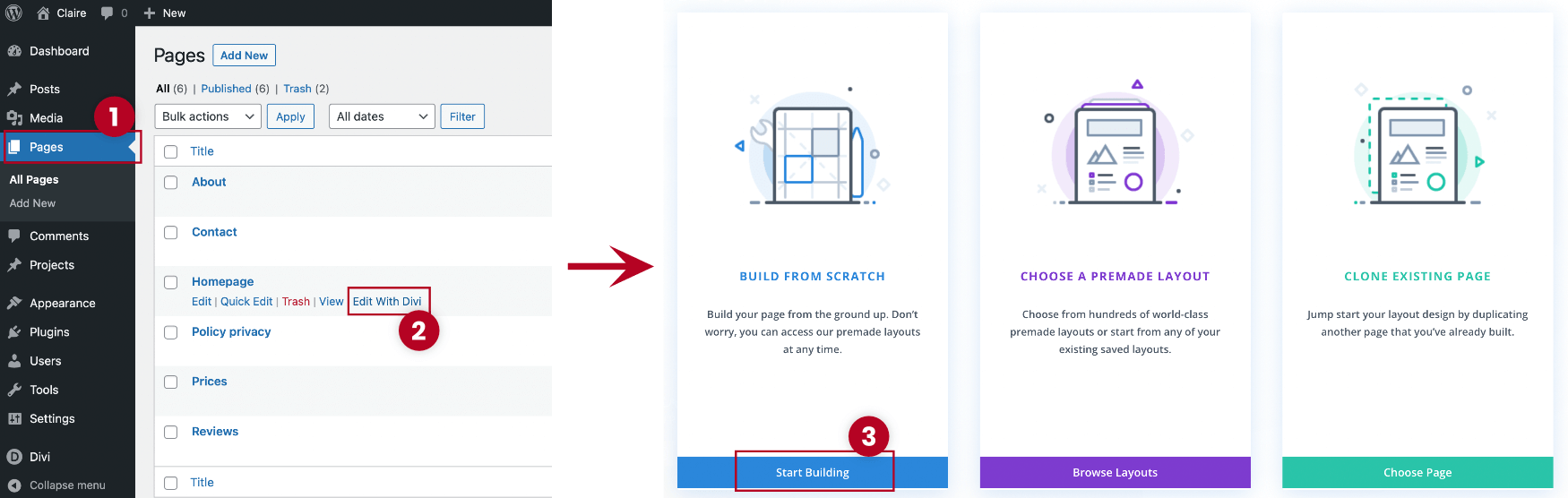
Go to Pages > All Pages and click on Edit With Divi next to the name of the page you want to edit. Then click on Start Building.
Select the Import tab in the window that appears. Click on Choose File and select the Claire-Homepage.json. Click Import Divi Builder Layout.
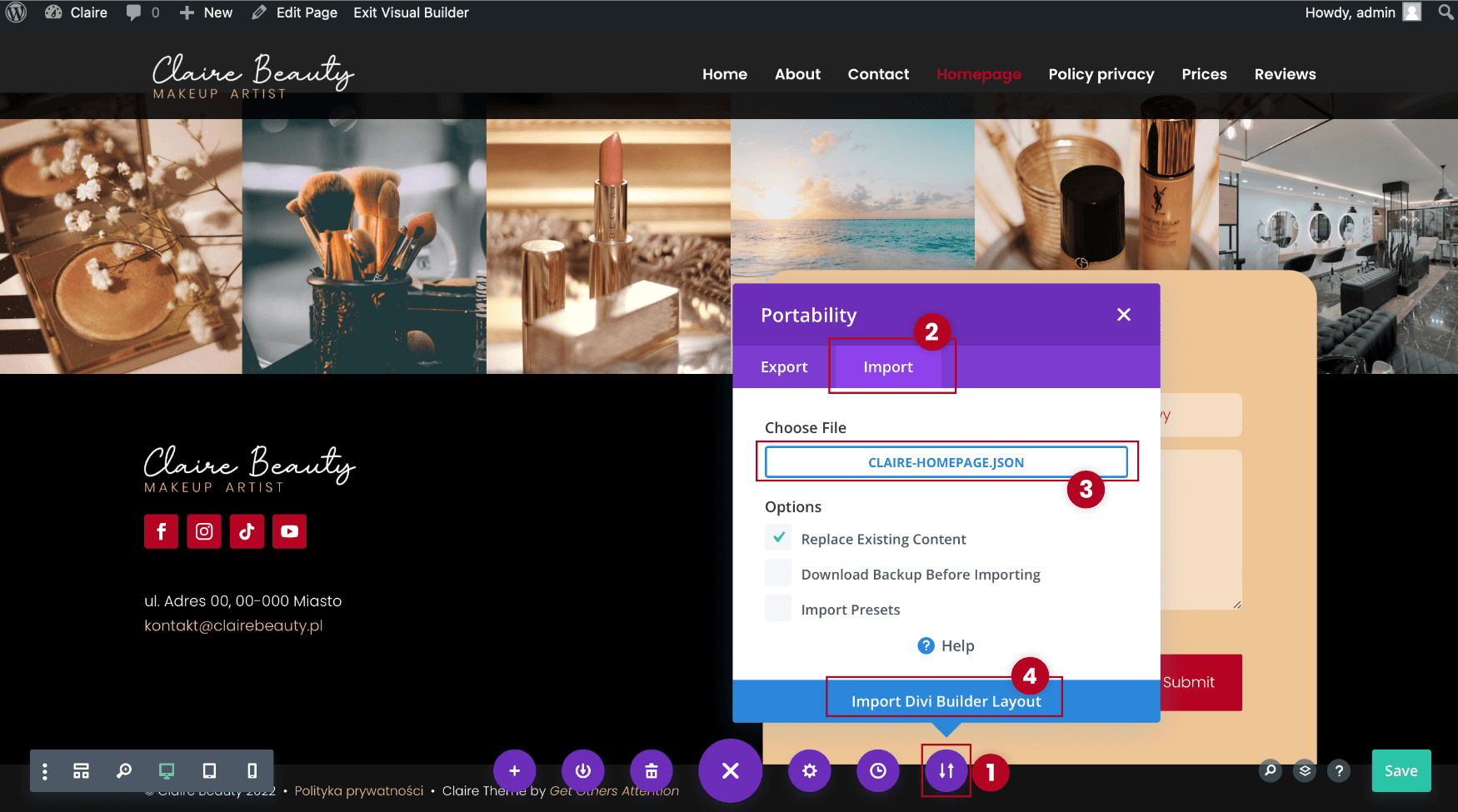
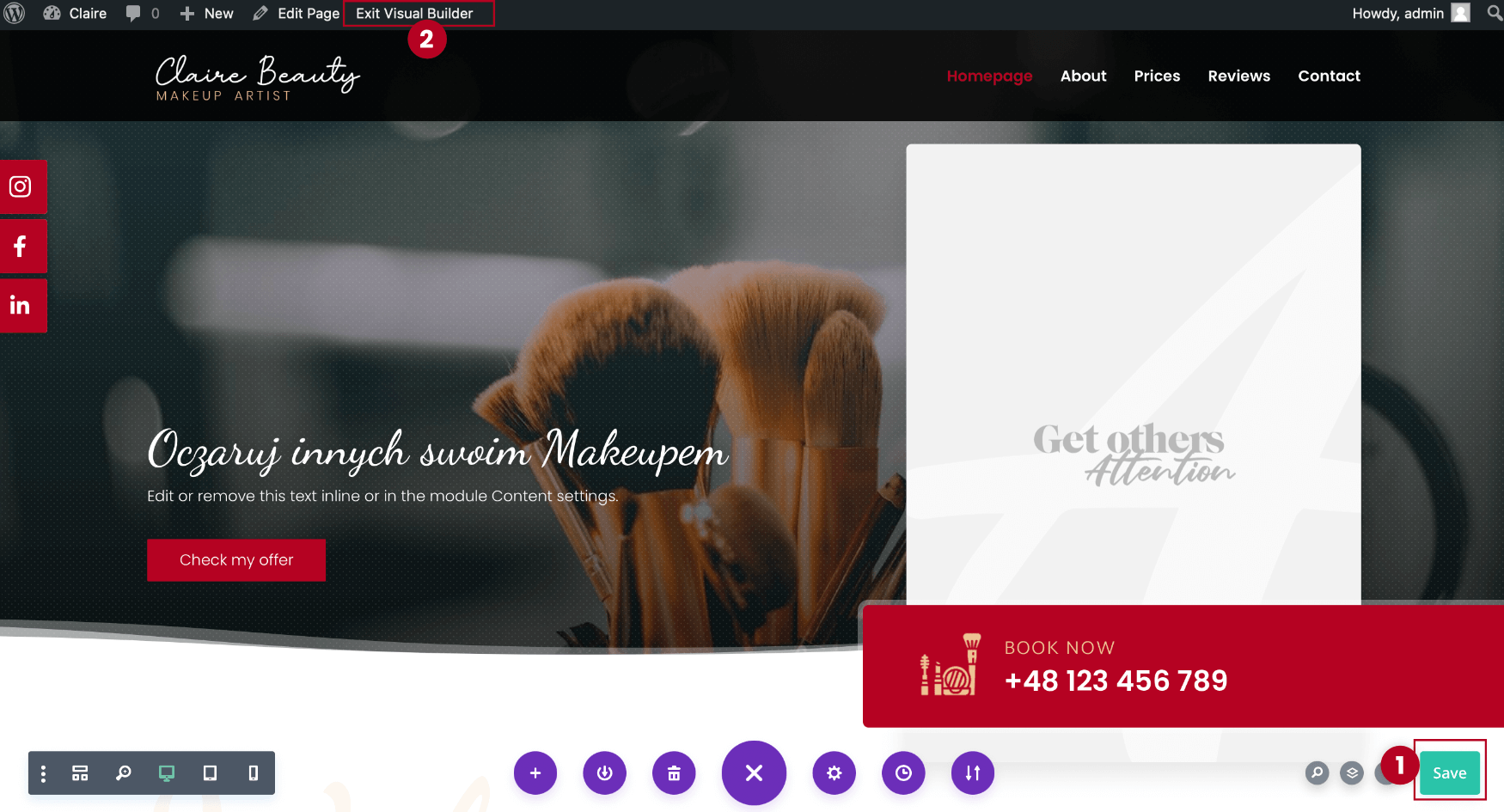
After all, remember to Save changes by clicking green button. Then Exit Visual Builder.
5. Divi Theme Customization
After you’ve installed WordPress on your hosting, download the archive with the purchased theme, unzip it and prepare claire.zip archive. Open your WordPress dashboard.
Logo
After you’ve installed WordPress on your hosting, download the archive with the purchased theme, unzip it and prepare claire.zip archive. Open your WordPress dashboard.
Go to Divi > Theme options and click on Import & Export (Two arrows icon).
Favicon
After you’ve installed WordPress on your hosting, download the archive with the purchased theme, unzip it and prepare claire.zip archive. Open your WordPress dashboard.
Go to Divi > Theme options and click on Import & Export (Two arrows icon).
Button Style
After you’ve installed WordPress on your hosting, download the archive with the purchased theme, unzip it and prepare claire.zip archive. Open your WordPress dashboard.
Go to Divi > Theme options and click on Import & Export (Two arrows icon).
Header Style
After you’ve installed WordPress on your hosting, download the archive with the purchased theme, unzip it and prepare claire.zip archive. Open your WordPress dashboard.
Go to Divi > Theme options and click on Import & Export (Two arrows icon).
Footer Style
After you’ve installed WordPress on your hosting, download the archive with the purchased theme, unzip it and prepare claire.zip archive. Open your WordPress dashboard.
Go to Divi > Theme options and click on Import & Export (Two arrows icon).
6. Content Customization
The page builder is installed together with the theme, so every element of the page can be easily personalized. Each of the pages is built from 3 types of blocks: Section (blue), Row (green) and Module (black). Each of them can be modified by entering into their settings (the second icon from the right, resembling a cogwheel).
In this project, the blocks have been named accordingly, so we will present the paths to access them.
Accordingly: Section > Row > Module.
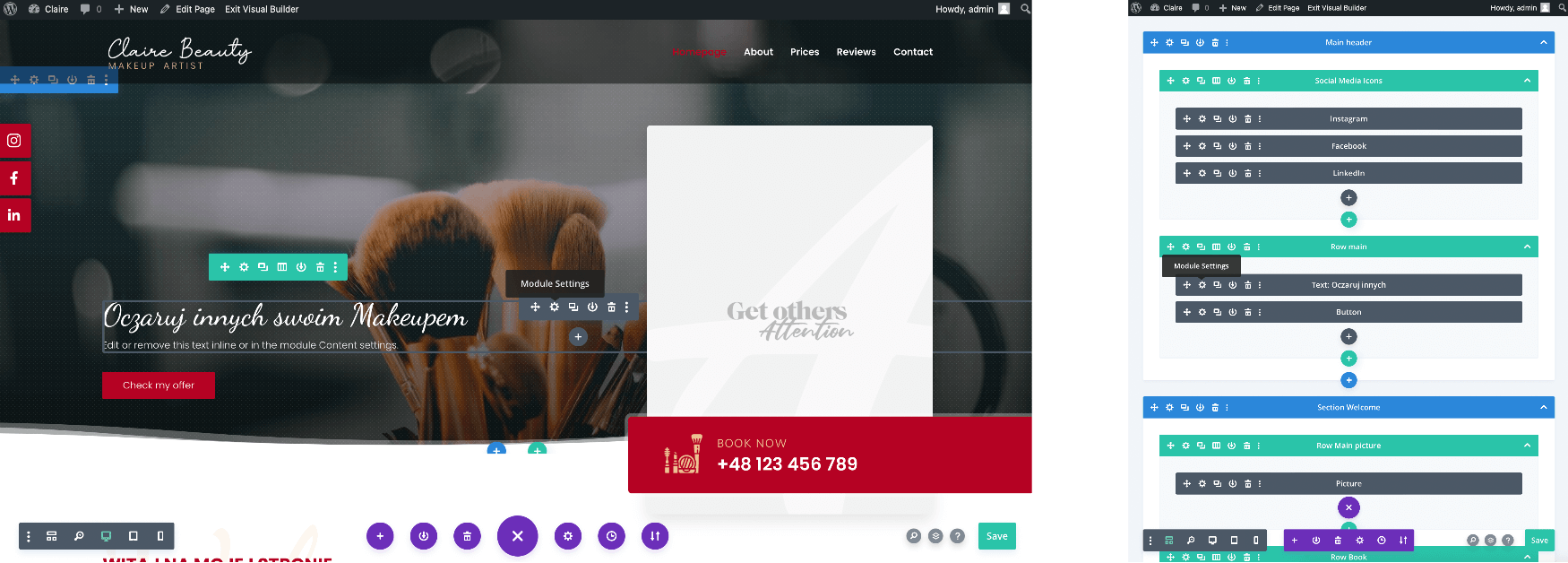
There are a few objects which reapets themself in this Theme. An examples below explain how to edit them.
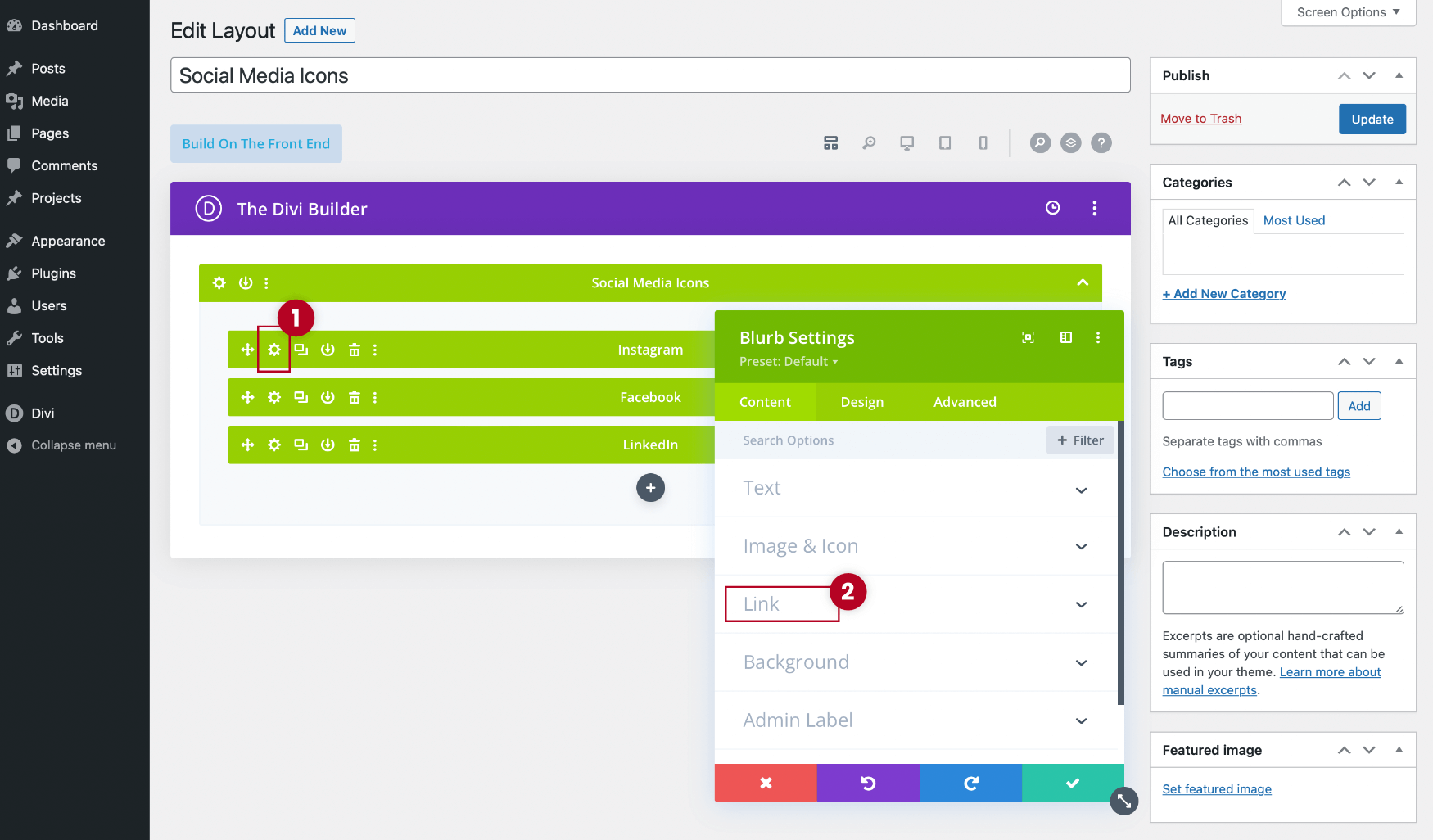
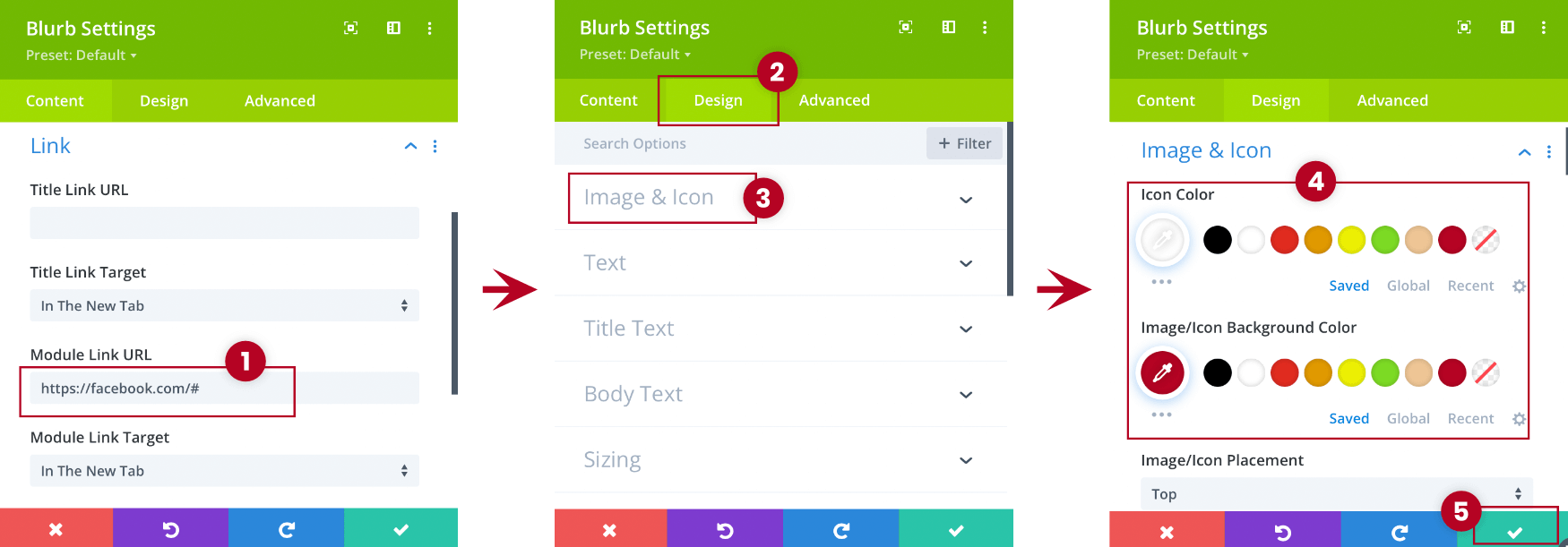
Enter into the settings one’s of the icons by clicking Module Settings (Step 1) and open a Link tab (Step 2).
Enter the link to your Social Media in the Module Link URL (Step 1). If you want to edit icons’ design you need to go to Design tab (Step 2). Then, click on the Image & Icon (Step 3) and pick the color you want (Step 4). After all, remember to Save the changes (Step 5).
At the end Update the layout.
Background section edit
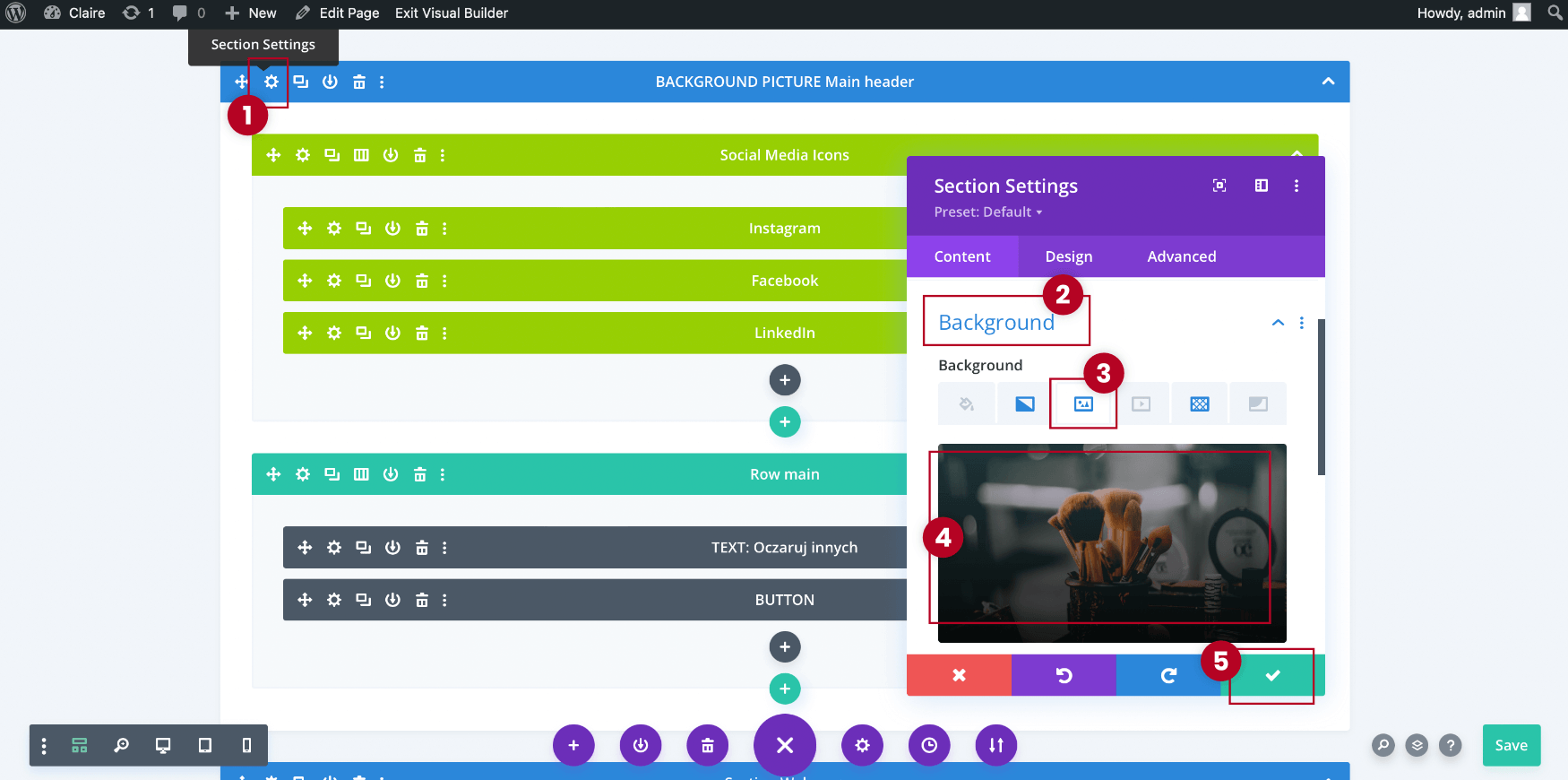
Enable Visual Builder on the page you want to edit and switch view to wireframe (Step 1).

Enter into the settings of section named BACKGROUND Main header (Step 1) and go to the Background tab (Step 2). Click on the Background Image tab (Step 3). Upload the image you want (Step 4) and Save changes (Step 5).
Text module edit
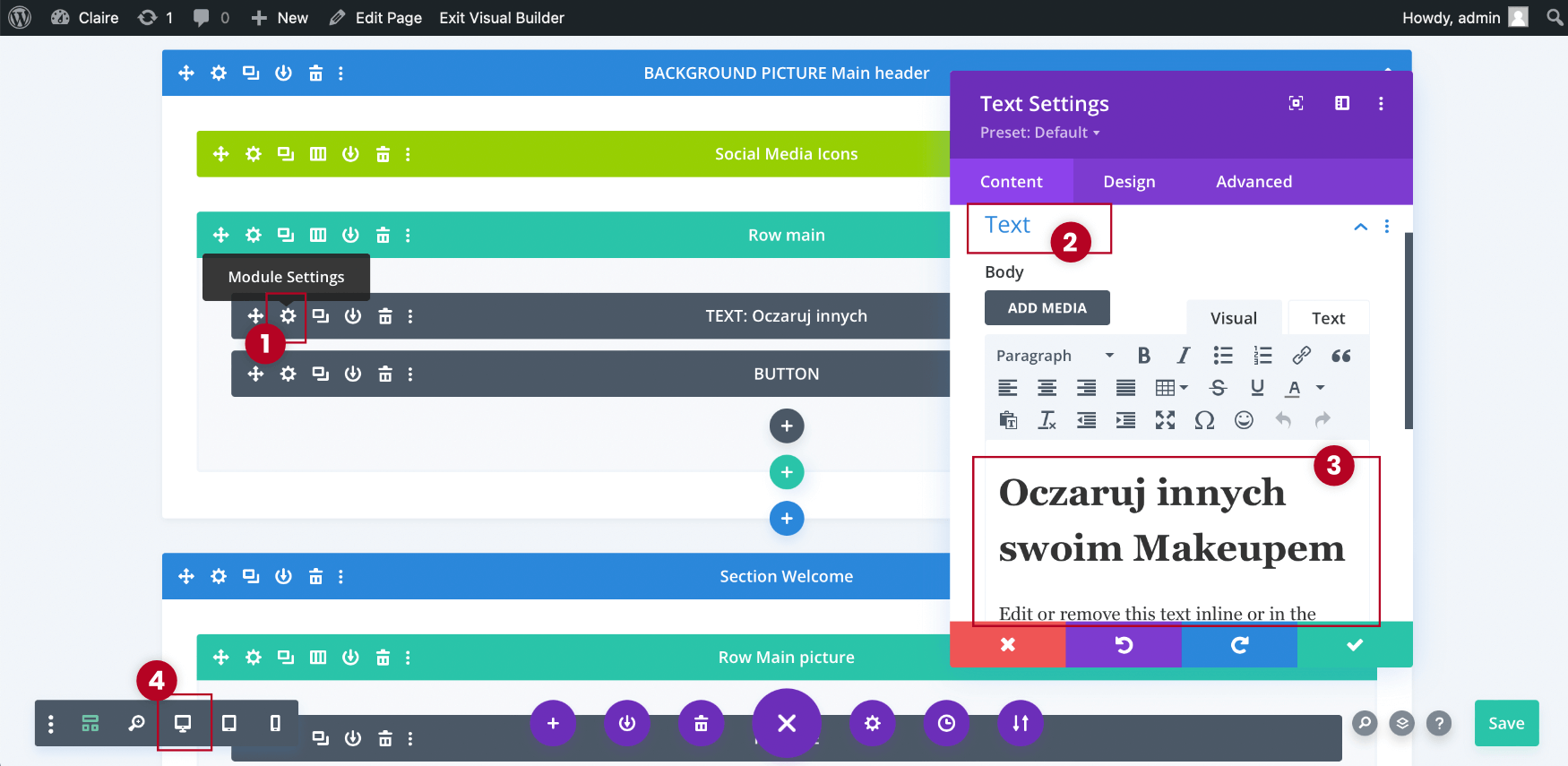
Enable Visual Builder on the page you want to edit and switch view to wireframe (Step 1).
Enter into the settings of module named TEXT: … (Step 1) and go to the Text tab (Step 2). Edit text (Step 3). To change text settings switch view to Desktop (Step 4).
Hover the mouse over the text and click on the blue icon (Step 1). The settings window will appear. Edit text settings like you want (Step 3) and Save the changes (Step 4).
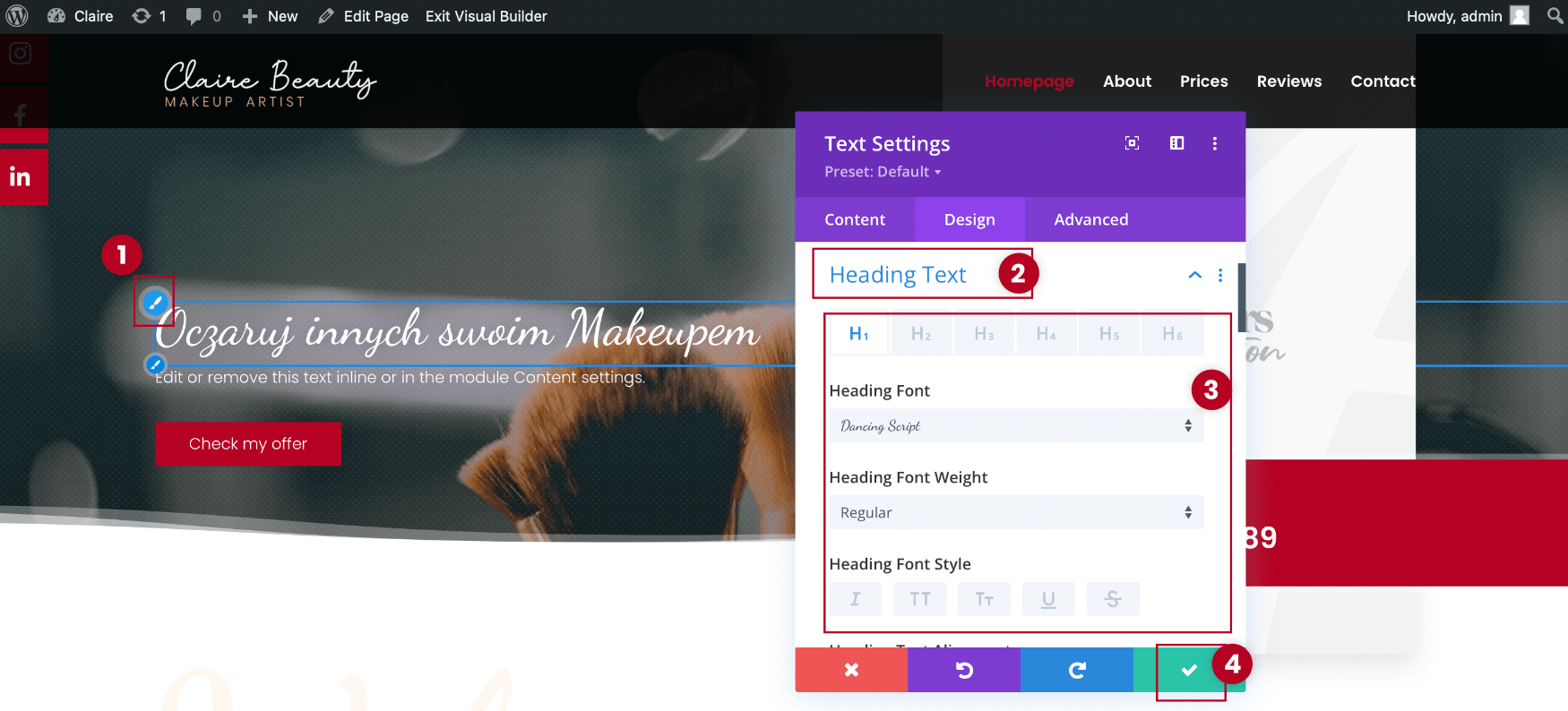
Image module edit
Enable Visual Builder on the page you want to edit and switch view to wireframe (Step 1).
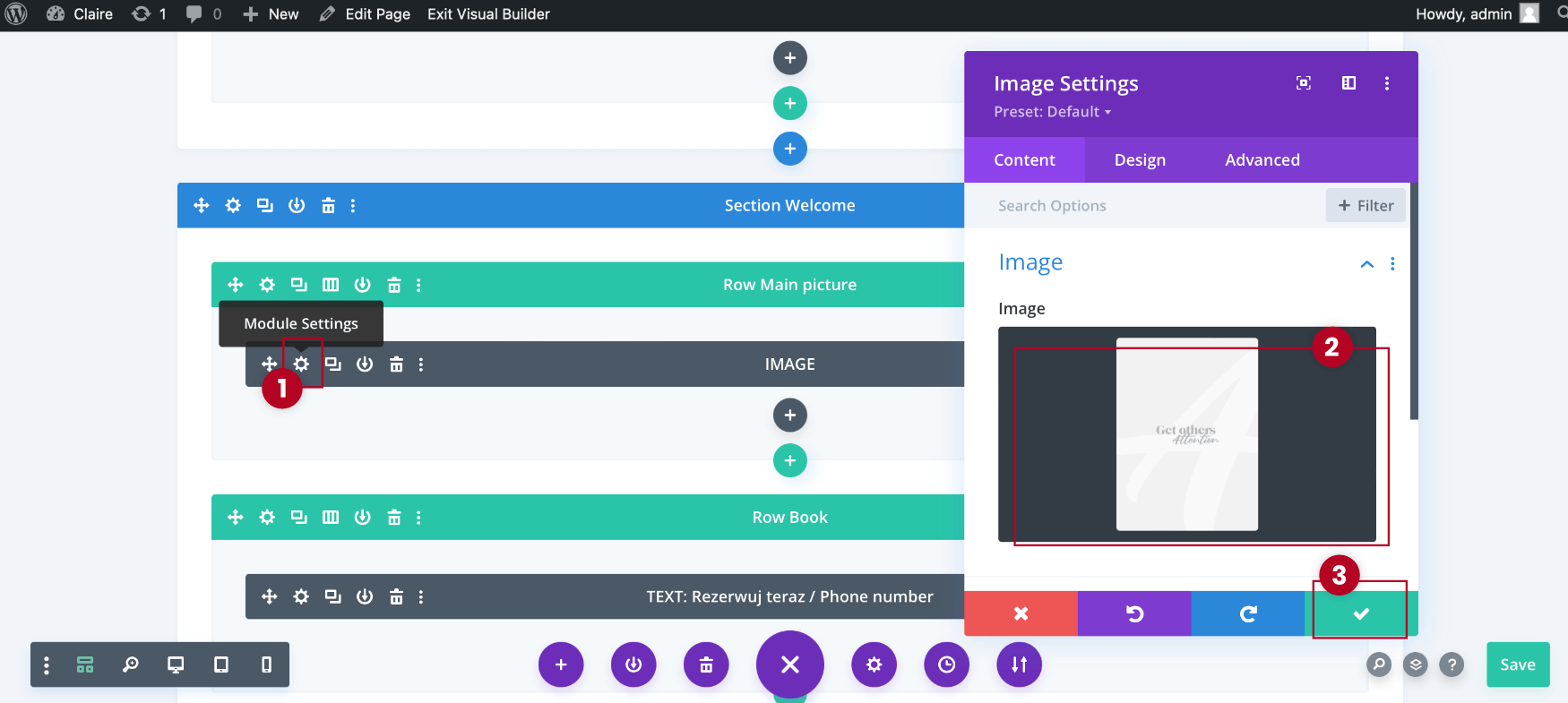
Enter into the settings of module named IMAGE (Step 1). Upload the image from media library (Step 2). Save the changes (Step 3).
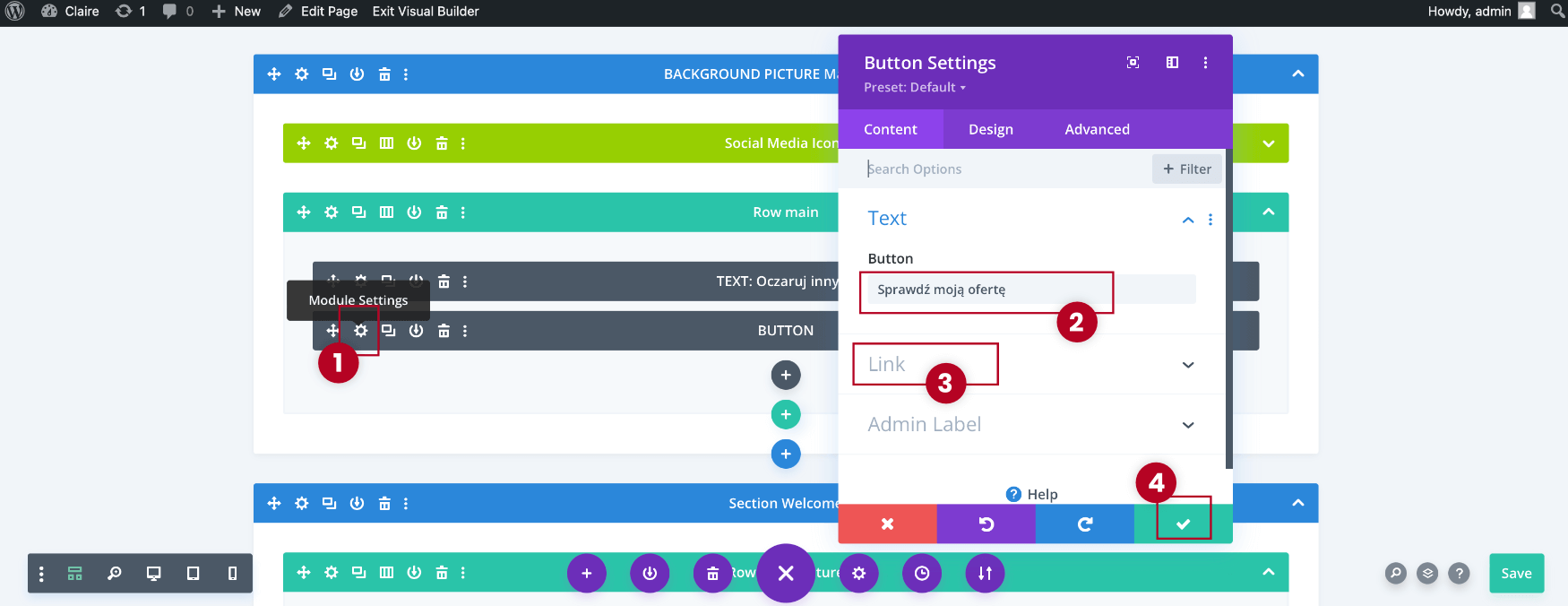
Enter into the settings of module named BUTTON (Step 1). Change the button caption (Step 2). Switch to Link tab and enter the button link in the Button Link URL (Step 3). Save the changes (Step 4).
Social Media Icons
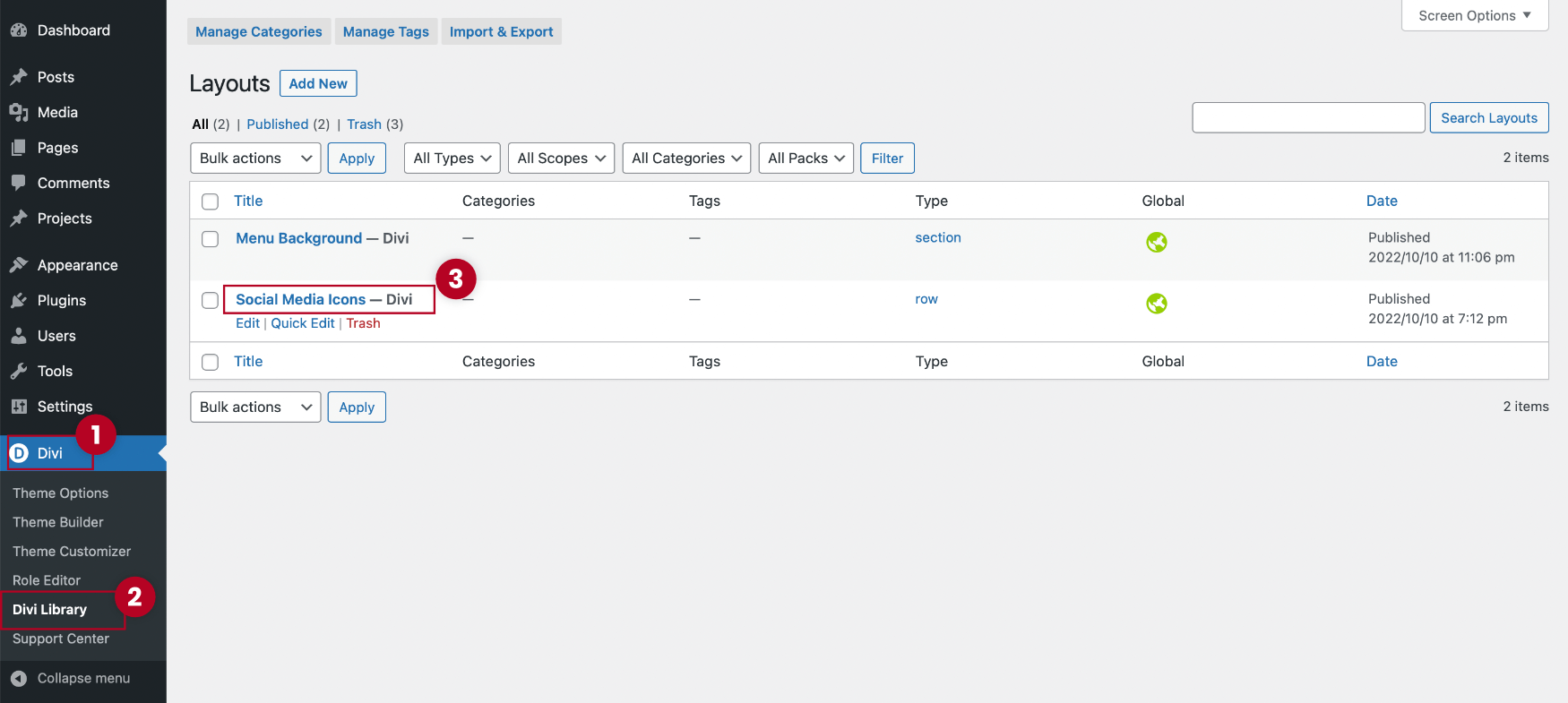
Go to Divi > Divi Library and click on Social Media Icons (Step 3).